📌 INSTRUCTION — To access the asset, you must have purchased it using your own Keymaster account. If you need to transfer the asset to a different Keymaster account, you can use the transfer system. Please note that the transfer can only be performed once for an asset, so ensure the transfer is done carefully
First, log in to the CFX portal. Once inside, grab the asset from the official CFX page—you can download it as many times as you like. Need updates later? Just head back to the same page and download again.
First, log in to the official CFX portal by clicking here
Once logged in, navigate to the "Granted Assets" section to view all the assets you've purchased. Locate the asset you want to download and click on Download Button it.
All dependencies are mandatory—use the full dependency guide and include every required file.
When downloading a dependency, make sure the file is fully unzipped and does not contain “-main” at the end of its folder name. If it does, remove “-main” before using it.
onex-base (portal) — Download by clicking here
onex-emotes_list — Download by clicking hereKeeping your artifacts and game build up to date is essential to prevent common server issues. Follow the steps below to update correctly:
💡TIP — To find the best FiveM artifact, visit artifacts.jgscripts.com. Thanks to JG Scripts.
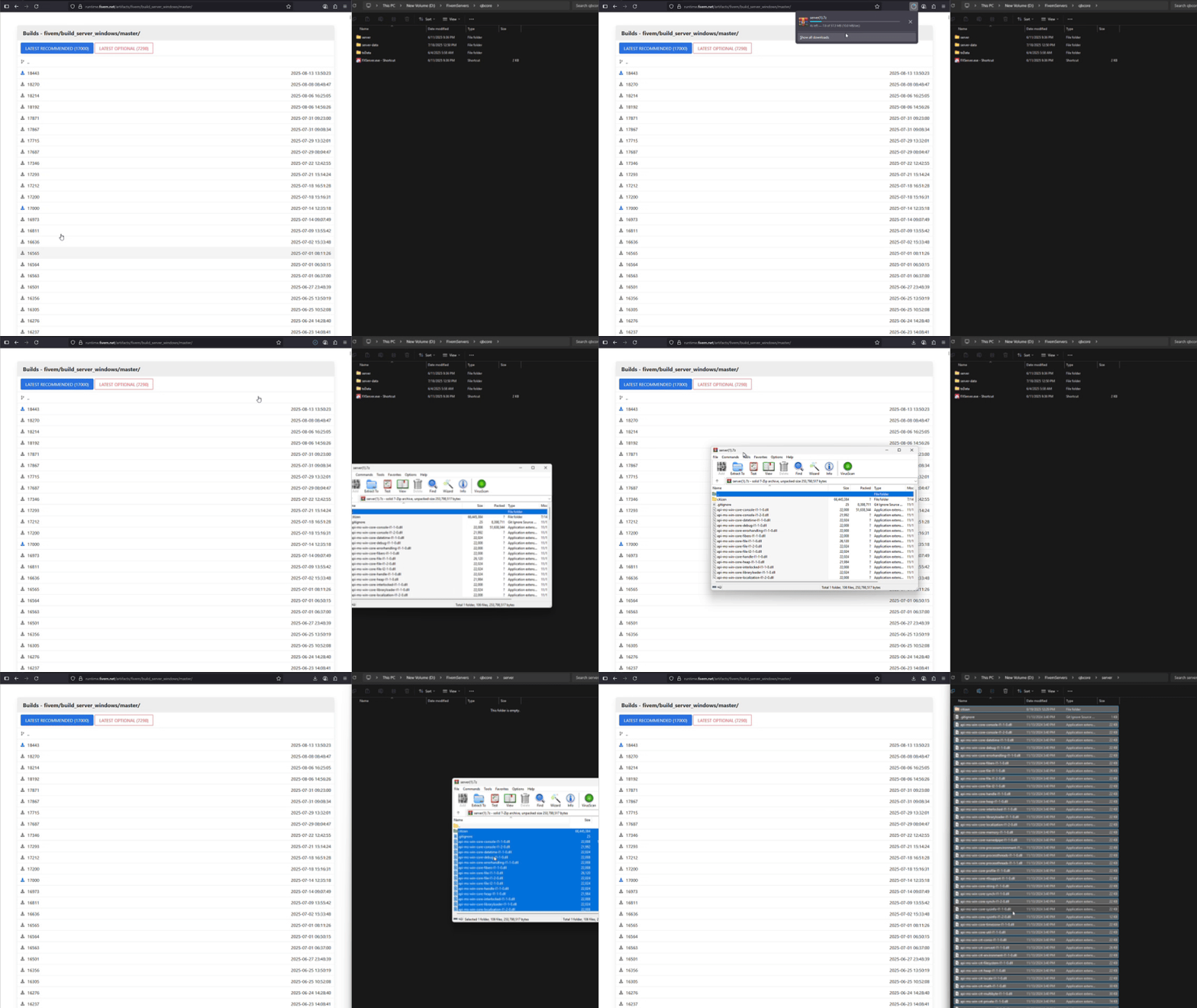
Replace your existing artifacts with the latest version. Download the correct artifacts for your operating system from the official sources:
Download the latest artifacts for your operating system from the official sources and replace your existing artifacts with the new version.
server.cfg
Please note that this asset includes 3 downloads:
onex-emotes,onex-emotes_listandonex-base. You can place and start both within the same folder.
To run this asset correctly, you must follow the proper start order. We recommend placing all dependencies and the onex-creation asset inside the [onex] folder for clean organization.
📌 CAUTION — If you don’t, you’ll need to start each dependency manually in the correct order.
server.cfg
If you prefer to keep resources separate, list them individually in the proper order:
server.cfg
🌐 INFO — It will work without this step all you will not able to see the previews on the menu for seeing menu follow this steps.
Last updated 4 months ago
